



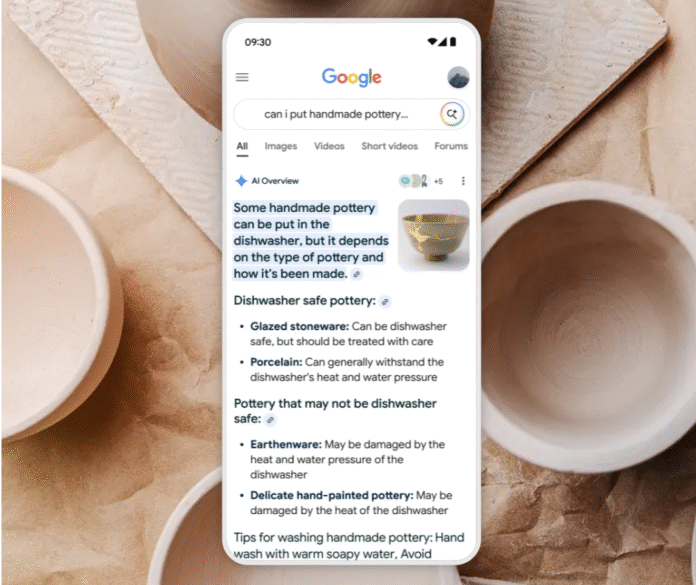
About 50% of Google searches already have AI summaries, reaching over 2 billion monthly users globally. However, as AI Overviews become more aggressive, many users are looking for ways to get back to simple, link-based results. Here’s how to turn off Google AI Overview using methods that actually work across desktop and mobile.
Can You Permanently Turn Off Google AI Overview?

The short answer: not permanently, and not with a simple toggle. Google has not provided a global setting to fully disable AI Overview across all searches. What we can do is use a combination of URL tricks, browser tabs, extensions, and settings that remove AI from Google search results on a per-search basis or make those workarounds feel permanent.
How to Turn Off Google AI Overview on Desktop
These methods work in any browser on your computer, including Chrome, Firefox, Edge, Safari, and Brave.
Method 1: Use the Web Filter Tab (fastest, no setup)

This is the quickest way to turn off AI on Google right now, with zero setup. After you run any Google search, look at the row of filter tabs just below the search bar. You’ll see options like All, Images, Videos, News, and Web. Click Web. The ‘Web’ tab filters out AI Overview completely and shows you only traditional blue links.
Method 2: Add &udm=14 to URL (most reliable)
This is the most consistent way to remove AI from Google search. After running a search, look at the URL bar. This is the address field at the very top of your browser where the website link appears. At the end of that link, simply add &udm=14 and press Enter to reload the page.
For example:
https://www.google.com/search?q=best+laptops , you’d change it to:
https://www.google.com/search?q=best+laptops&udm=14
This small change forces Google into a “web-only” results mode, skipping AI-generated summaries every time.
Method 3: Use the -AI Search Trick (per-search workaround)
This is a quick trick rather than a full solution. In your Google search, add -AI at the end of your query, for example, best running shoes -AI. The minus sign tells Google to exclude results containing the word ‘AI’. It doesn’t always work perfectly, but it’s fast and needs no setup.
Method 4: Install a Chrome Extension

If you use Google Chrome, there are extensions (small add-on programs that modify how your browser works) that automatically remove AI Overviews on search queries. Two popular options are Hide Google AI Overviews and Bye Bye, Google AI, both available for free in the Chrome Web Store.
- Open Chrome and search for “Chrome Web Store.”
- Search for “Hide Google AI Overview” or “Bye Bye, Google AI.”
- Click “Add to Chrome” on the extension you want.
- Confirm by clicking “Add extension” in the pop-up.
Once installed, the AI Overviews will be automatically hidden every time you search on Google.
Method 5: Disable via Google Search Labs (if available)
Google Search Labs is an experimental features area within Google for testing new AI tools. During AI Overview’s initial rollout in 2024, Google Labs experiment offered an opt-out toggle. As of 2026, this option has been removed for most users, but it’s worth checking if your account still has it.
- Go to google.com and make sure you’re signed into your Google account.
- Click the Google Labs icon (looks like a beaker or flask) in the top-right corner of the search results page, if you can see it.
- Look for ‘AI Overview’ or ‘Search Generative Experience’ and toggle it off if the option appears.
If you don’t see a Labs icon or an AI Overview toggle, Google has removed this option for your account. Use Methods 1–4 instead.
How to Turn Off Google AI Overview on Mobile
On mobile, turning off Google AI Overview works a bit differently since options are more limited compared to desktop.
On Android
The Web tab trick works on Android in Chrome. After searching, scroll left through the filter tabs (All, Images, News, Videos) until you see Web, then tap it. You’ll get clean, AI-free results for that search. You can also add &udm=14 manually in the browser for AI-free results.
For a more permanent fix, consider changing your default search engine from Google to DuckDuckGo or Brave Search. Neither shows AI Overviews. To do this in Chrome on your Android phone, go to Settings > Search engine and select your preferred option.
On iPhone
On iPhone, Safari (Apple’s default browser) lets you change the search experience by going to Settings > Apps > Safari > Search Engine and switching from Google to alternatives like DuckDuckGo.
For Chrome on iPhone, you can make the same change in Chrome Settings > Search Engine, which helps reduce AI-heavy results. The Web tab is also available in mobile Chrome and works the same way as on Android, instantly filtering out AI Overview when selected.
Use TenBlueLinks.org as Default Search Engine
TenBlueLinks.org is a lightweight website that strips away AI Overview and gives you plain blue links. You can set it as your default search engine on both Android and iPhone in Chrome by going to Settings > Search engine > Add and entering TenBlueLinks.org.
How to Disable Google AI Overview on Different Browsers
Different browsers handle Google AI slightly differently, but the same principles apply.
- Chrome: Use extensions or URL tricks (&udm=14).
- Firefox: Add custom search parameters to remove AI.
- Safari: Use bookmarks or switch search engines.
- Edge: Extensions work similarly to Chrome.
Why Does Google AI Overview Keep Appearing?
Google introduced AI Overview as part of its shift toward AI-powered search. Instead of only showing a list of links, it now tries to answer queries directly using AI-generated summaries.
This feature is powered by Gemini (Google’s AI model), which pulls information from multiple sources and combines it into a single response at the top of search results.
There are a few reasons this keeps showing up more often:
- Google is competing with tools like ChatGPT and other AI assistants
- It increases how long users stay on search results pages
- It reduces reliance on clicking through to external websites for personalized digital experiences
Because of these goals, AI Overview is being pushed more aggressively across searches, even when users prefer traditional results. The downside is that it can feel cluttered, less accurate in some cases, and unnecessary for people who just want direct links.
Best Alternative Search Engines Without AI Overview
If you want to completely get rid of Google Assistant-style AI results, switching search engines is the simplest solution. Some strong alternatives include:
- DuckDuckGo shows results without AI-generated summaries or tracking, so searches stay simple and privacy-focused.
- Startpage delivers Google-style results but strips out tracking and removes AI overlays, giving a cleaner version of Google’s index.
- Brave Search uses its own independent search index instead of Google and lets users turn AI features on or off depending on preference.
- TenBlueLinks.org forces Google results back into a classic “blue links only” format, removing AI-style summaries and extra layers so searches feel more traditional.
These options give you clean, AI-free results, as with the traditional search experience.
Final Verdict
Google is moving toward a future where AI doesn’t just assist but actively completes tasks for you, reducing the need to click, compare, or even think through steps manually. In March 2026, the company announced its latest updates in the AI space, including expanding Search Live for real-time responses and deeper Gemini integration across its products, reinforcing a shift toward instant, AI-driven interactions.
While faster, AI-driven answers can save time, they also reshape how information is presented and discovered. Instead of exploring multiple sources, you’re often given a single, summarized response upfront. Turning off AI Overview, then, goes beyond a simple preference. It comes down to choosing between speed and visibility, and how much control you keep over the way you find information.
FAQs
How to disable Google AI overview 2026?
There’s no single off switch, but you can reliably remove it using a few methods. The fastest option is clicking the Web tab after a search, which shows only traditional results. For a more consistent fix, add &udm=14 to your search URL to force web-only results every time.
Can I permanently disable Google AI overview?
No, Google doesn’t currently offer a permanent setting to turn it off across all searches. You’ll need to rely on workarounds like the Web tab, URL tweaks, or browser extensions to keep AI summaries out of your results.
How do I turn off AI mode in Google?
“AI mode” isn’t a single toggle, but you can reduce AI features by avoiding AI-enabled tabs, using the Web filter, or disabling experimental features in Search Labs (if available). Switching to alternative search engines is the only way to fully avoid AI-driven results.
Can I turn off AI on my phone?
Yes, you can. On Android or iPhone using Chrome, tap the Web tab after searching. For a more permanent fix, change your default search engine to TenBlueLinks.org. On your phone, go to Settings > Search engine > Add and enter TenBlueLinks.org.
How to stop Gemini Assistant from popping up?
To stop Gemini (Google’s AI assistant), go to your phone settings, open Apps > Default Apps > Digital Assistant App, and switch it from Gemini to “None” or another assistant. You can also disable it in the Google app settings under Assistant or Gemini options, depending on your device.
How do I restore Google back to normal?
To switch back to normal Google, you need to force search results to show traditional blue links instead of AI Overview. The most reliable way is to always use the Web tab after searching or add &udm=14 to your Google search URL, which filters results into web-only mode.
The post How to Turn Off Google AI Overview in 2026: Every Method That Works appeared first on Memeburn.